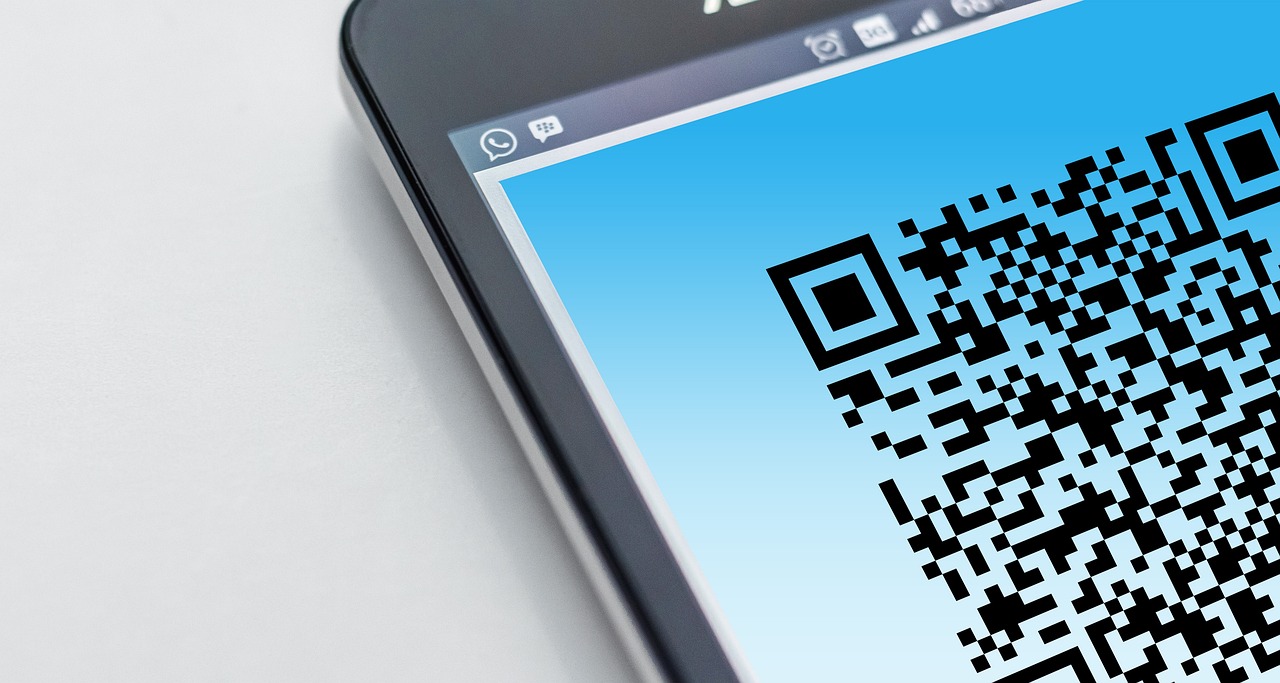
Most people instinctively reach for their camera when they need to scan a QR code, but there is a far more convenient method — you can scan a QR code that is already saved as an image on your phone in just a few taps. Whether the code arrived via email, a messaging app, or a screenshot you took earlier, both Android and iOS include built-in tools to open those links without needing a second device or a camera.

Scanning a QR code from your phone’s gallery is quick and easy on both Android and iOS. (Image: geralt / Pixabay)
Scan a QR Code From Your Gallery
The process is nearly identical across platforms. Start by taking a screenshot of the QR code, or save the image if someone sent it to you. On an iPhone, open the Photos app, select the image, and look for a small blue badge with three horizontal lines that appears near the trash icon. Tap the QR code in the photo, and a URL link will appear — tap it to open in your browser of choice. On Android, open the image in Google Photos or your gallery app and tap the Google Lens icon. Lens will analyze the code and present a tappable link within seconds.
Use Circle to Search on Android
If you own a recent Google Pixel or Samsung Galaxy device, Circle to Search offers an even faster workflow. Hold down the home button to activate the feature — a Google Search bar animates onto the screen. Navigate to the QR code image, then simply circle or tap the code with your finger. Circle to Search instantly recognizes it and offers to open the associated URL. This method works beautifully whether the code is in a screenshot, a web page, or a PDF, and it avoids needing to switch between apps.
Scan With Google Lens
Google Lens is another powerful option that works across platforms. On Android, the Lens icon is baked into the Google Search bar on the home screen, as well as inside Google Photos. Tap it, select the image containing the QR code, and Lens will surface the link. iPhone users can also get in on the action by installing the Google app or Google Photos and using Lens from there. It is one of the most reliable methods for decoding distorted or poorly lit QR codes that a simple screenshot scan might miss.
Stay Safe While Scanning
As convenient as these tools are, QR codes can also be a vector for phishing and malware attacks. Malicious actors can place stickers with fake QR codes over legitimate ones on parking meters, restaurant tables, and public posters. Before tapping any link that a QR code reveals, take a moment to preview the URL and ensure it matches the expected destination. When in doubt, skip the scan and type the web address manually. The built-in scanning tools on both iOS and Android will show you the URL before opening it — use that preview as your first line of defense.